

AI Integration Quick Reference
AI Integration Quick Reference
Instant Messaging
Send and receive text messages in real-time.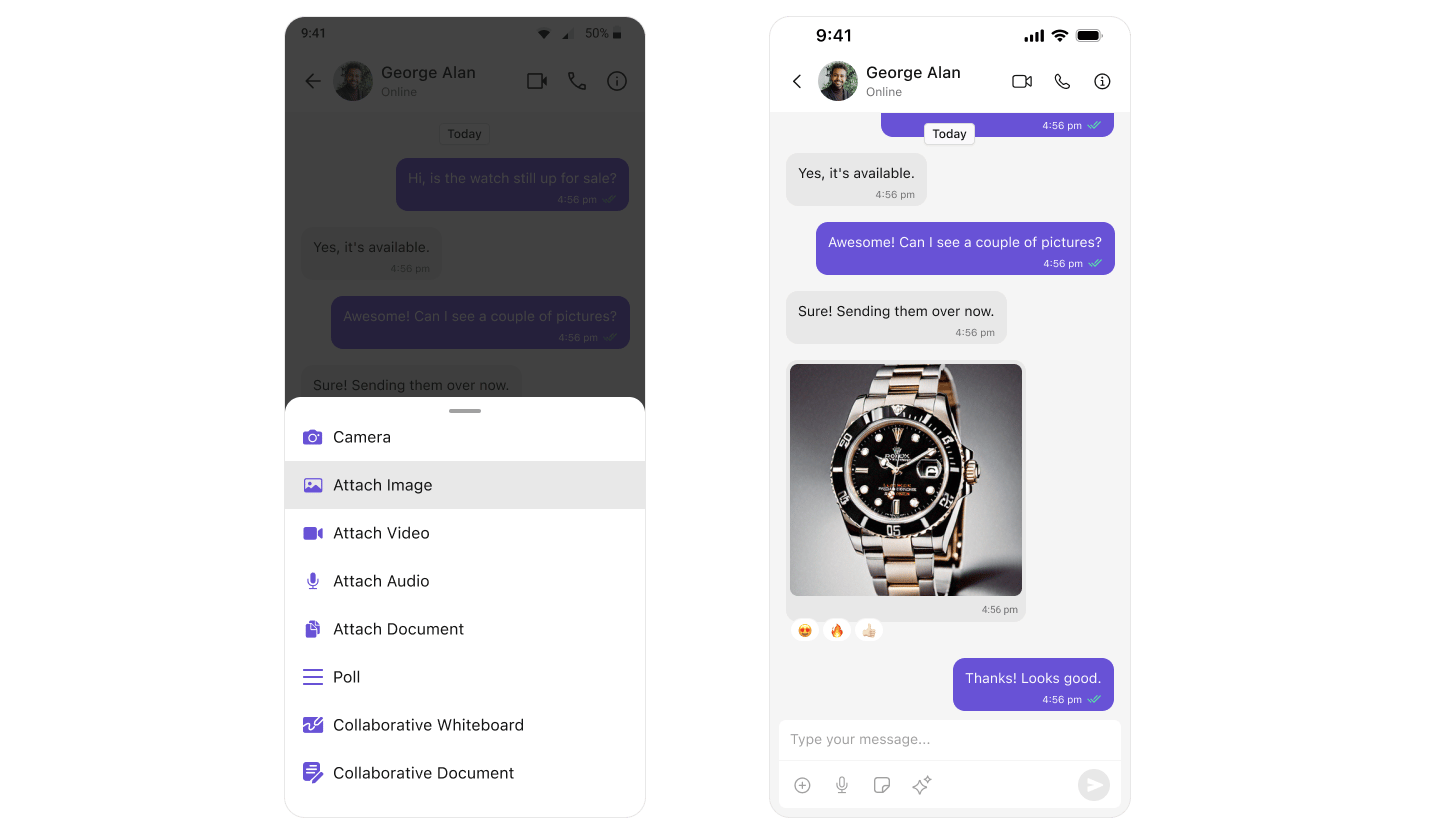
- MessageComposer - Text input and send button
- MessageList - Displays sent and received messages
- Messages - Complete messaging screen (includes both)
Media Sharing
Share multiple images, videos, audio files, and documents in a single send. Tapping the attachment button opens a multi-select picker; the picks stage in a preview tray above the input box with per-file upload progress, and send together with an optional caption. Everything works out of the box: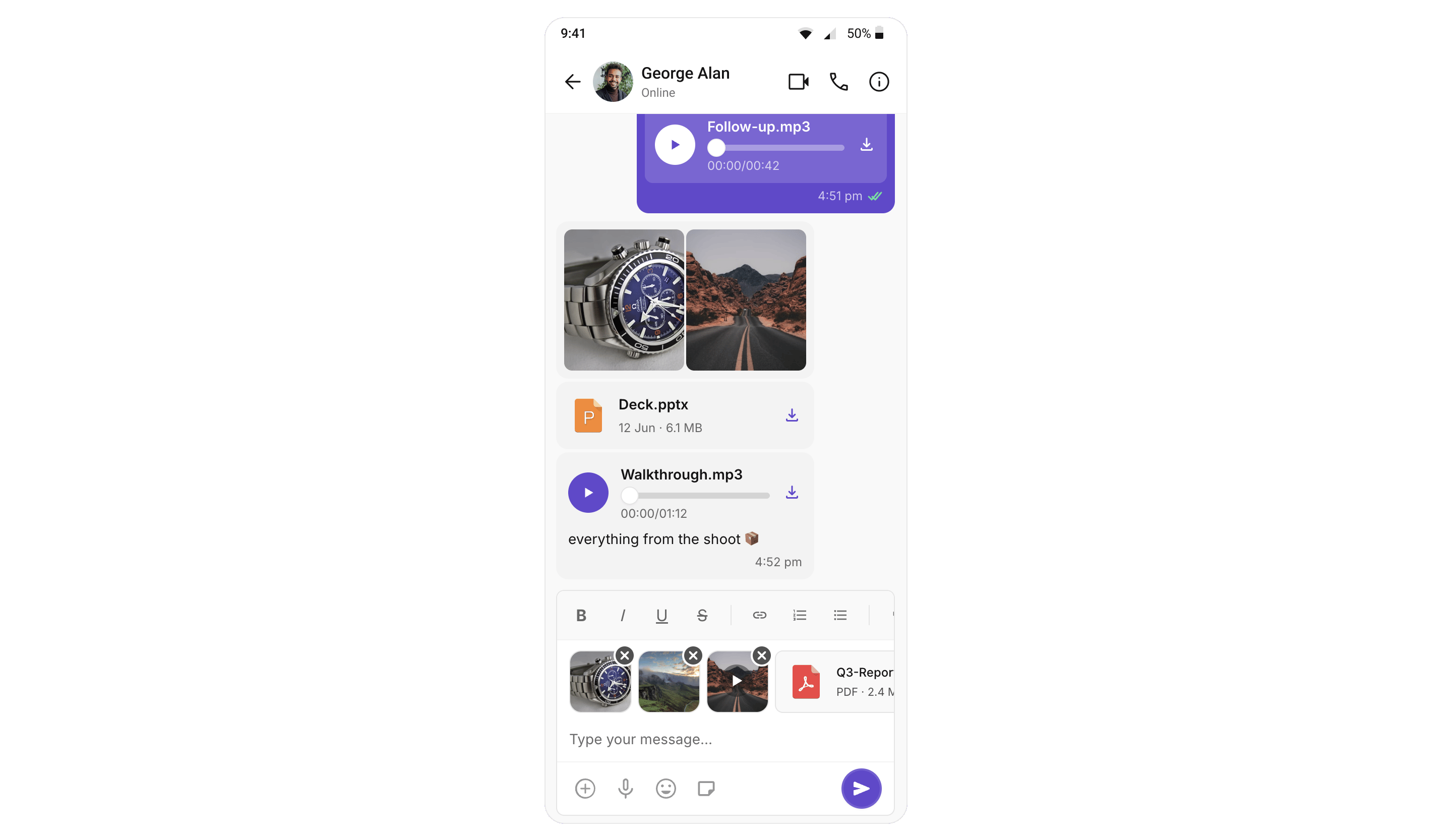
Read Receipts
Show when messages are delivered and read.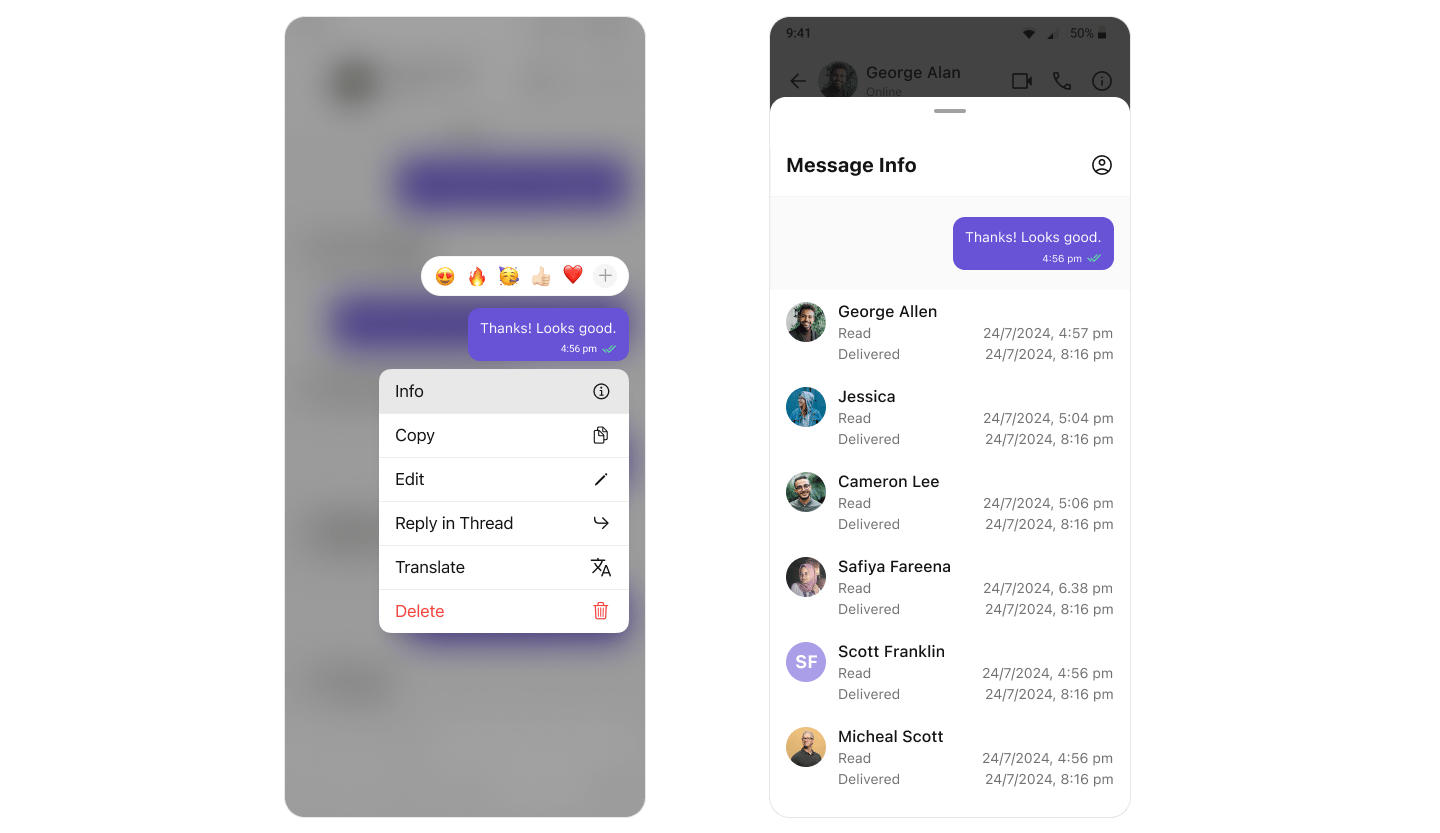
- ✓ Sent - Message sent to server
- ✓✓ Delivered - Message delivered to recipient’s device
- ✓✓ (blue) Read - Recipient has seen the message
- Conversations - Shows receipt status on last message
- MessageList - Shows receipts on each message
- MessageInformation - Detailed delivery/read info
Mark As Unread
Let users mark messages as unread to revisit later.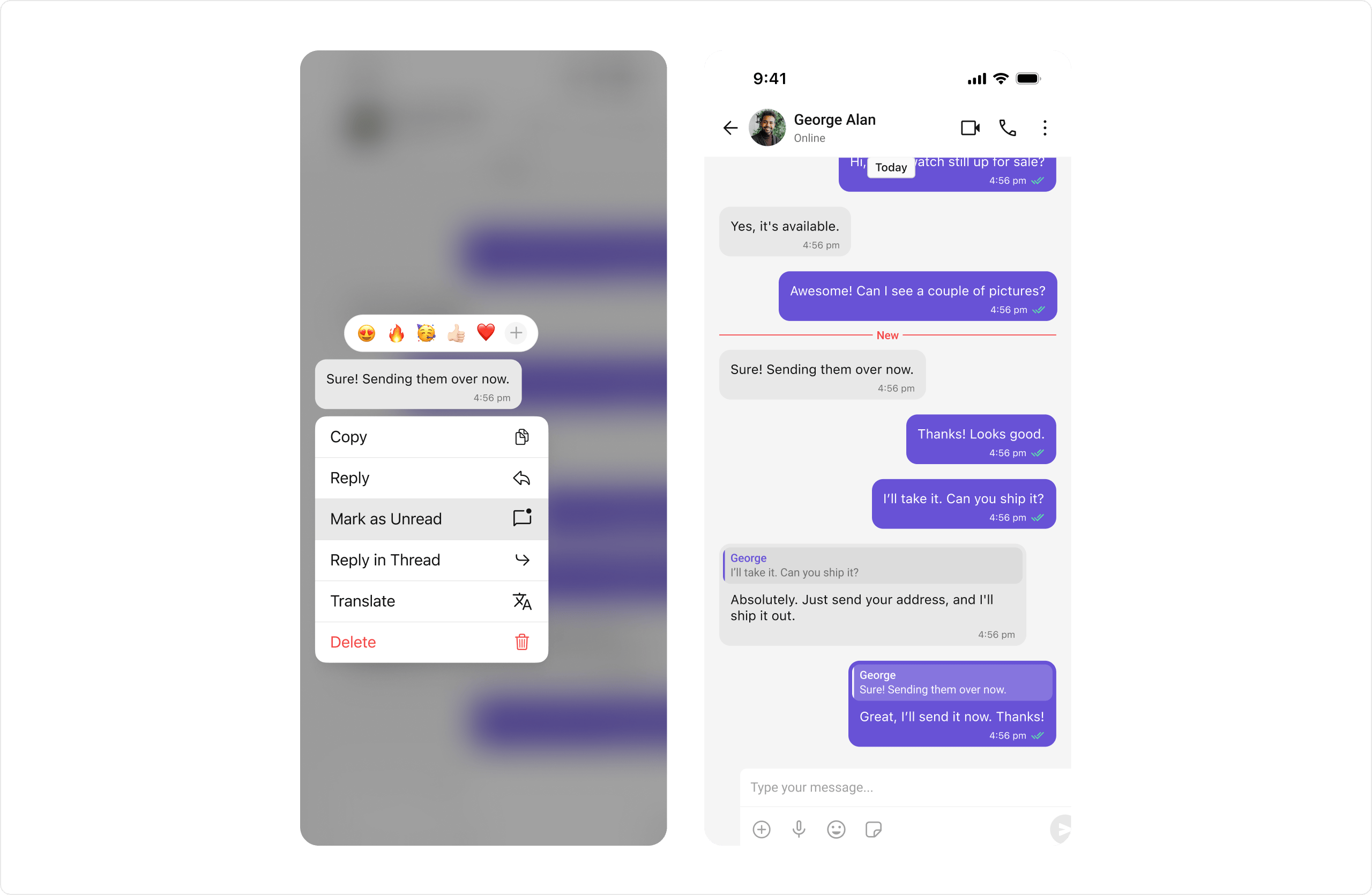
Typing Indicators
Show when users are typing in real-time.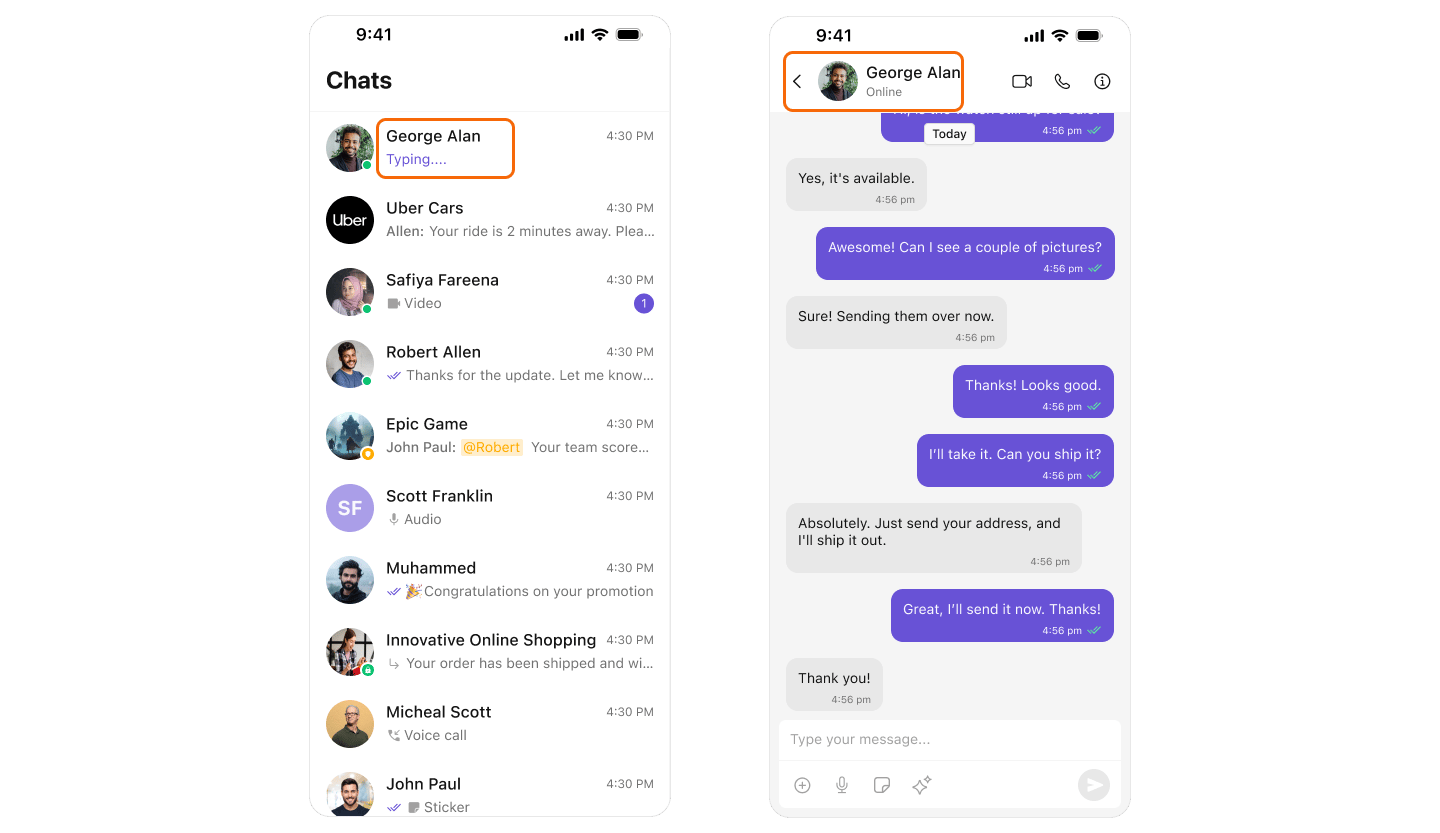
- Conversations - Shows typing in conversation list
- MessageHeader - Shows typing below user/group name
User Presence
Display online/offline status for users.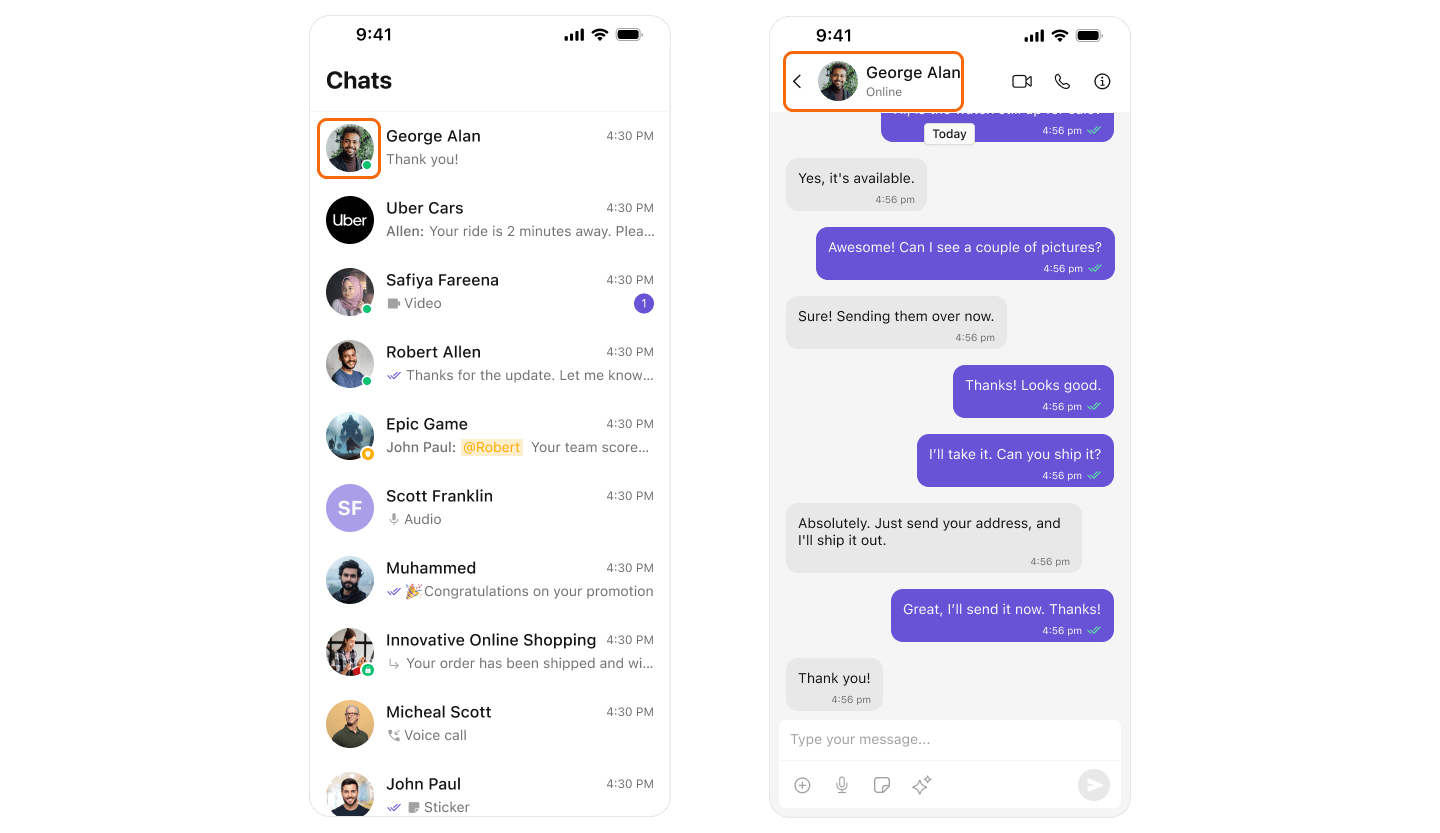
Reactions
Let users react to messages with emojis.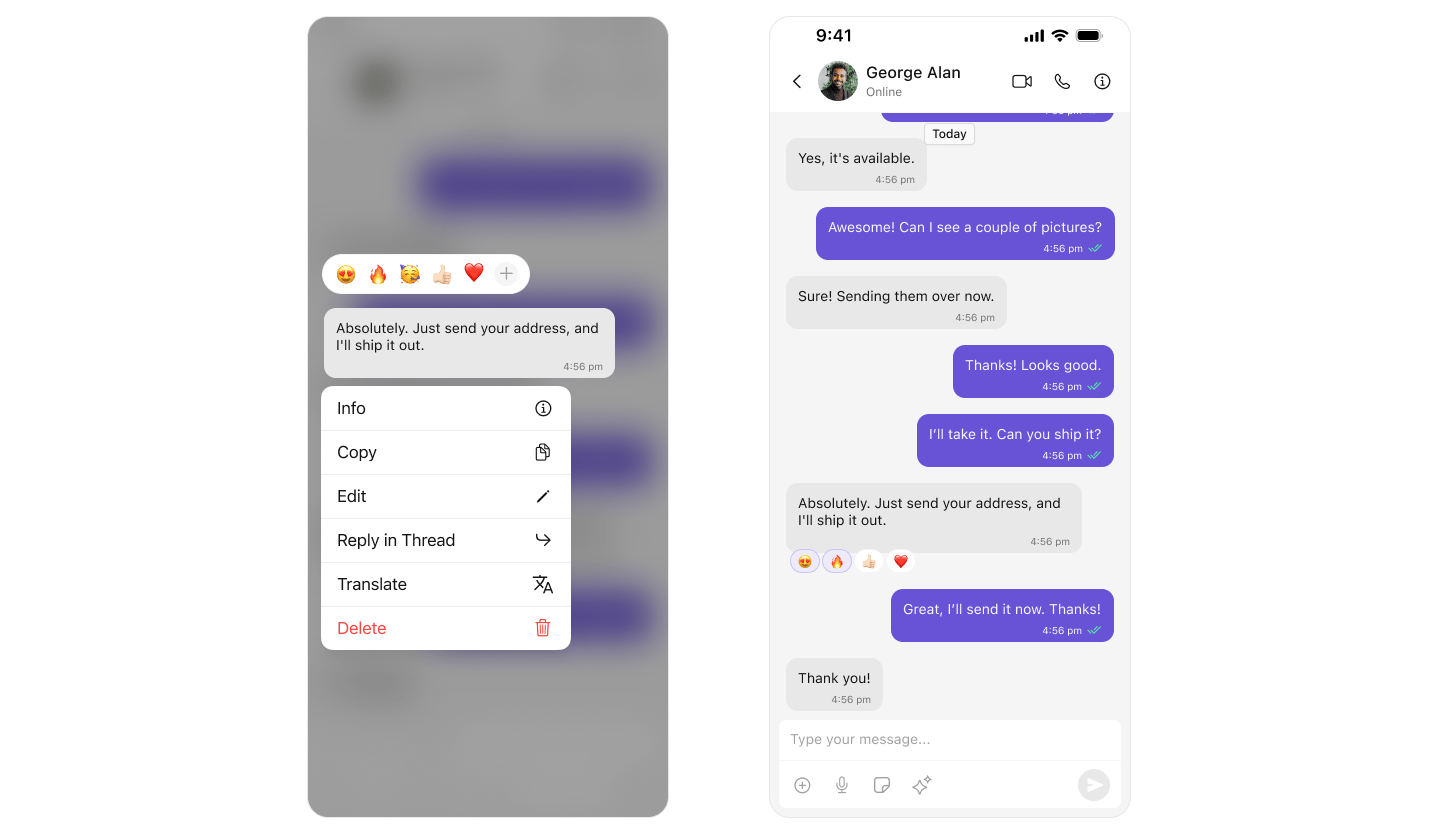
Mentions
Tag users in messages with @mentions.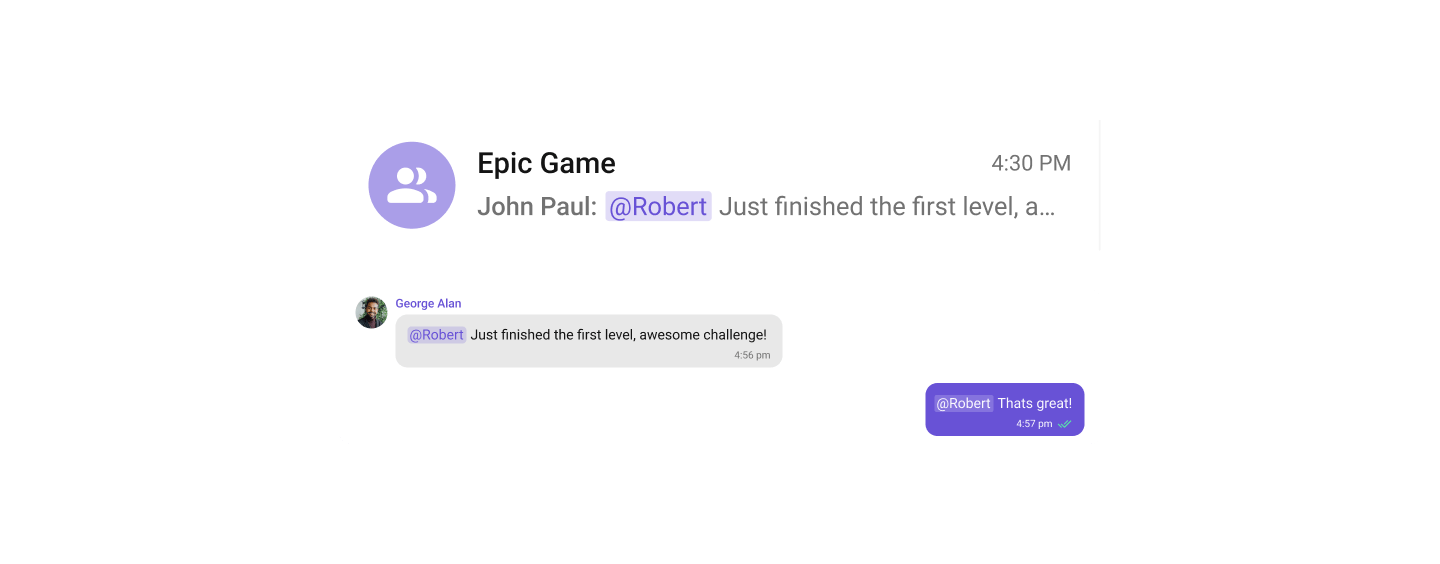
Rich Text Formatting
Rich Text Formatting allows users to style their messages with bold, italic, strikethrough, code, code blocks, blockquotes, ordered/unordered lists, and links. This brings richer expression to conversations and helps users emphasize key points.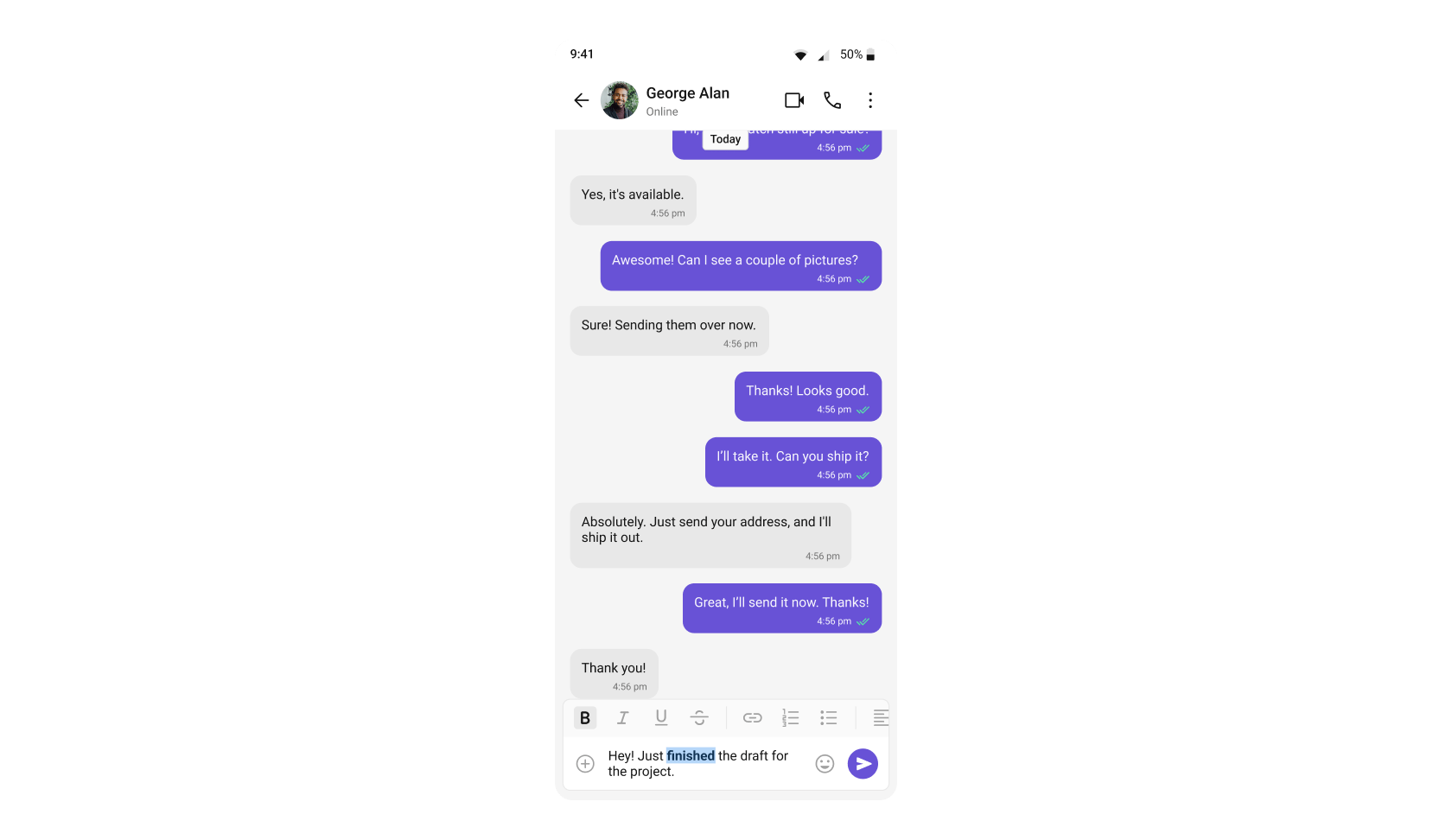
enableRichTextFormatting and showRichTextFormattingOptions are true by default. See the CompactMessageComposer Rich Text Formatting section for full configuration details.
Rich text formatting in message bubbles (rendering formatted text in the MessageList) is supported from UI Kit version 5.2.11 onwards. Earlier versions will display the raw markdown syntax instead of formatted text.
Threaded Conversations
Reply to specific messages in threads.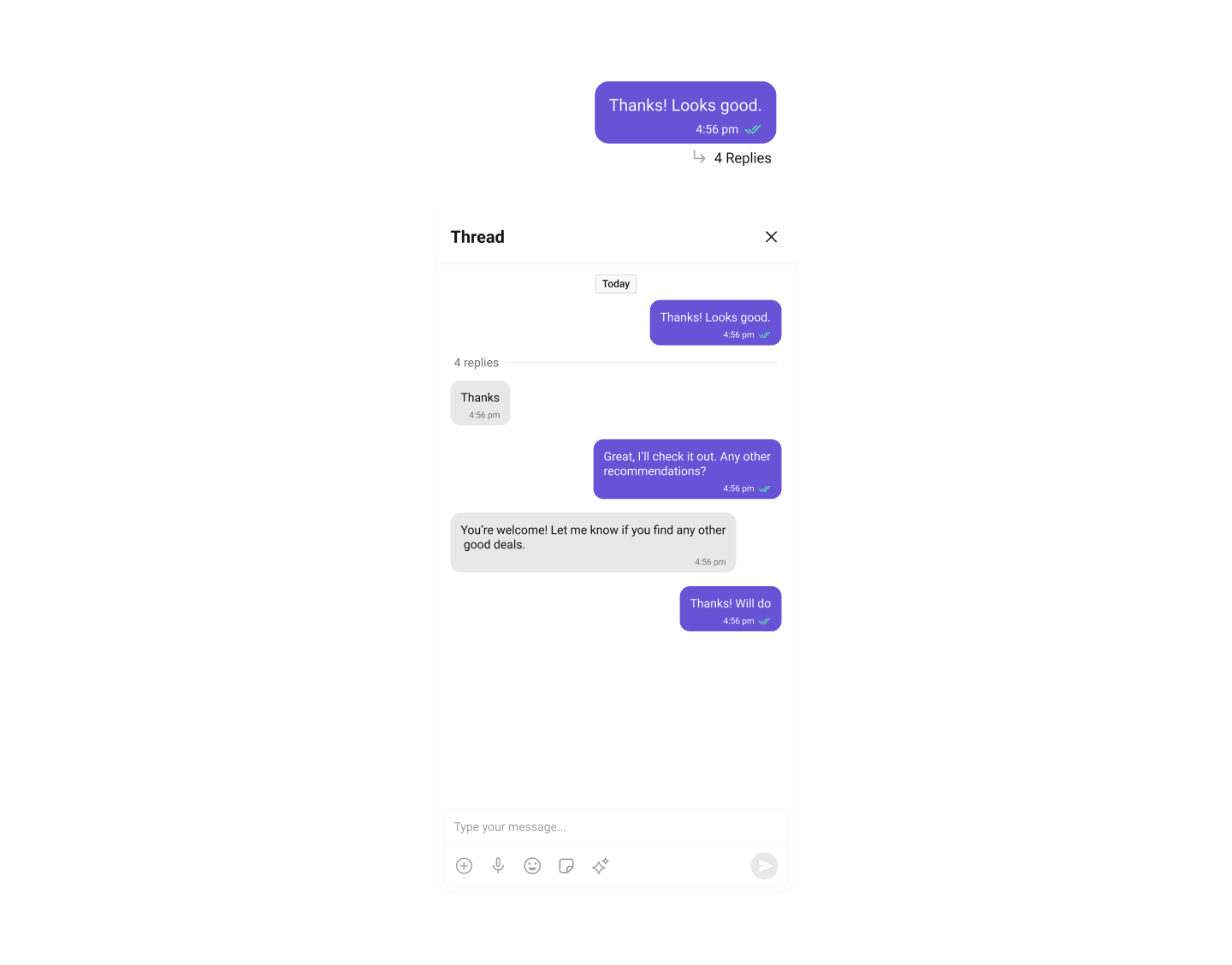
- ThreadedMessages - Displays thread replies
Thread Subscription
Available since v5.1.22 Let users subscribe to a thread to be notified about its replies, or unsubscribe to mute it. Users are subscribed automatically when they start a thread, reply in one, or are @-mentioned in one — subscribing explicitly is how they opt in to a thread they haven’t participated in yet. On by default — there is no dashboard flag for this feature, soCometChatThreadSubscriptionConfig.setEnabled(false) is the only way to remove it. See Turning the Feature Off.
Group Chat
Create and manage group conversations.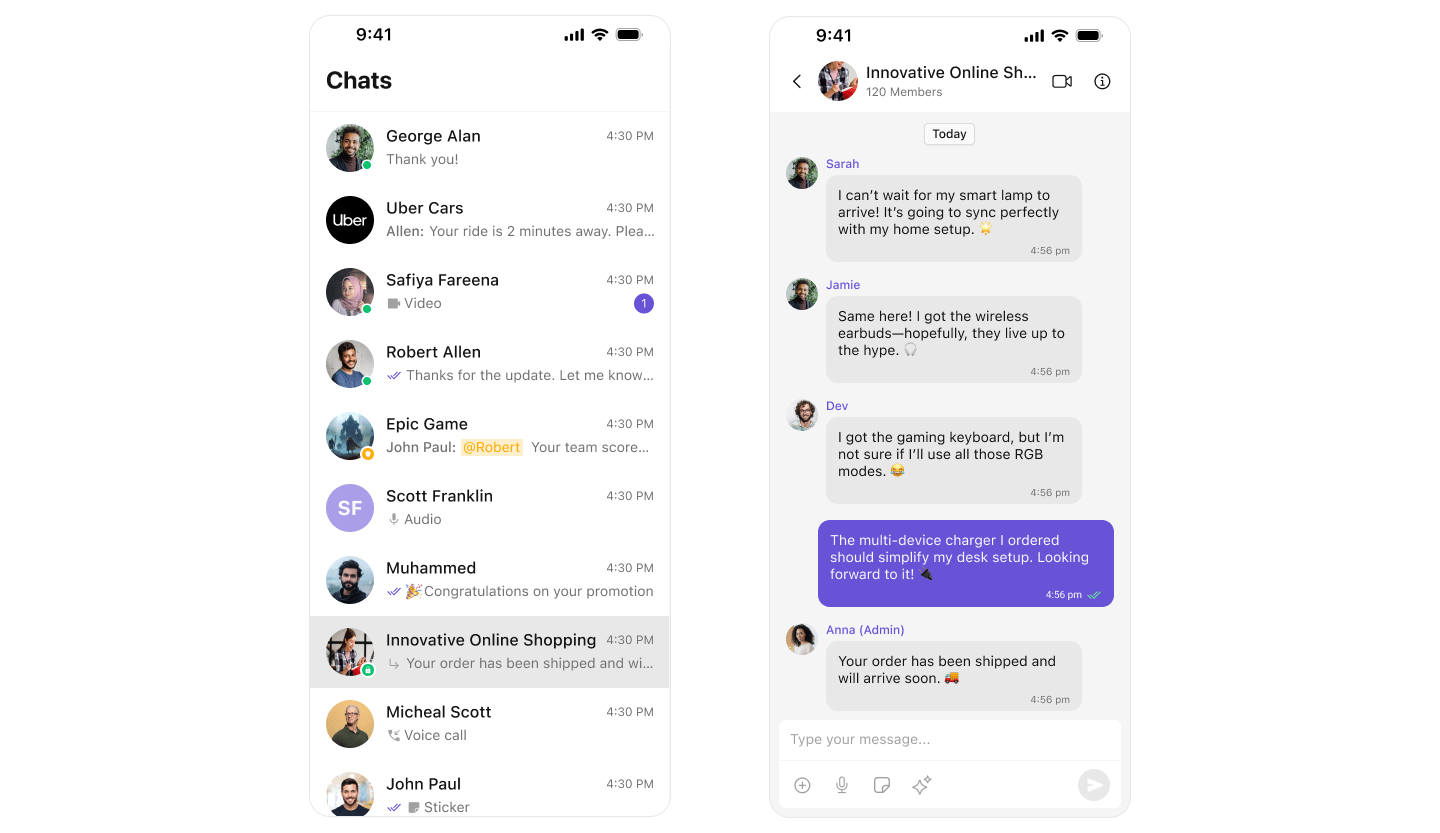
Quoted Reply
Reply to specific messages with context.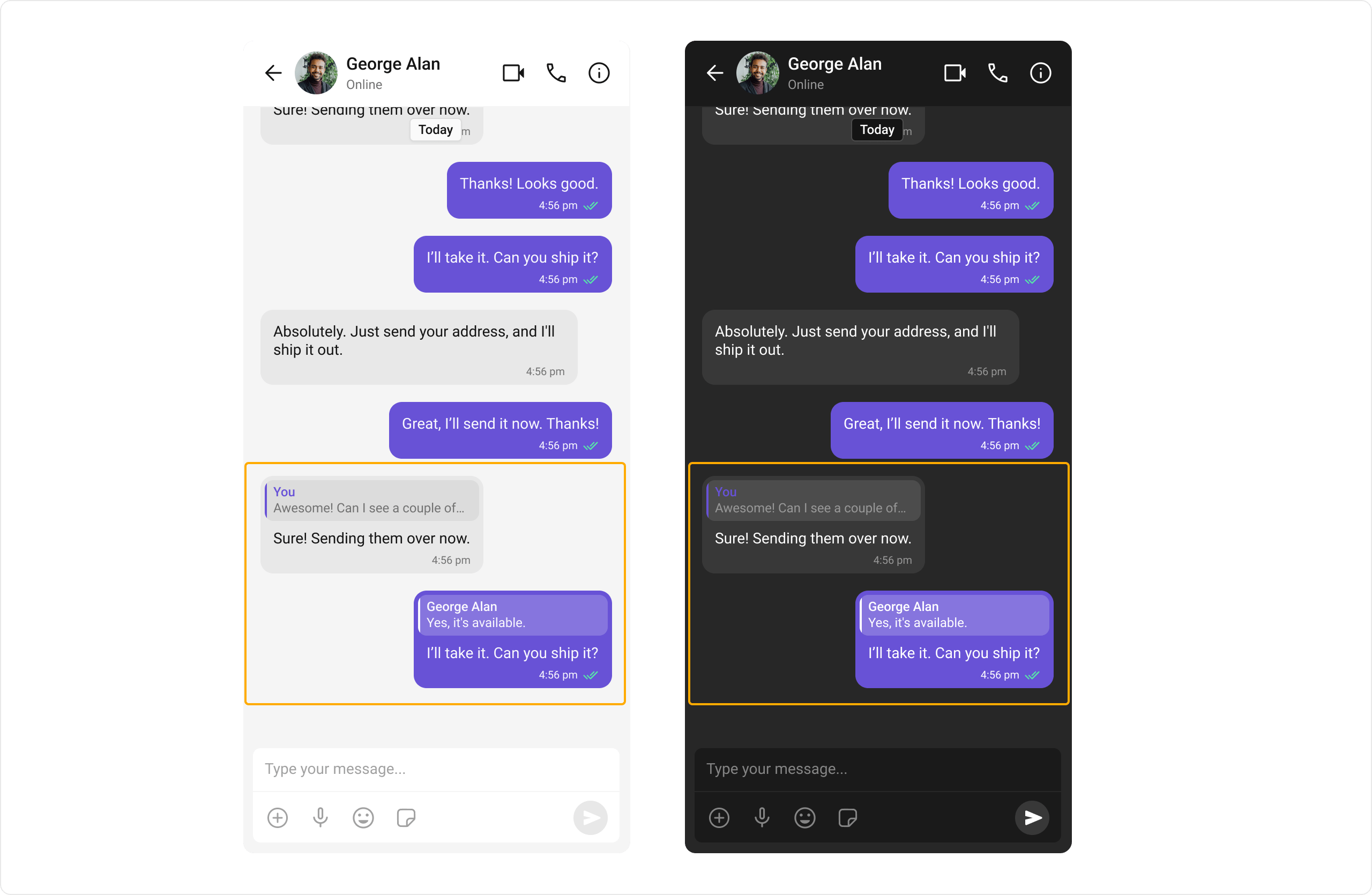
Pin & Save Messages
Available since v5.1.22 Keep important messages in reach. Pinning highlights a message for everyone in the conversation and is restricted to group owners, admins and moderators — everyone else sees the pin indicator and the pinned list. Saving bookmarks a message privately for the acting user and spans every conversation, so saves are listed on a user-level screen rather than a per-conversation one.- MessageList - Adds Pin, Unpin, Save and Unsave to the message options, and shows the bubble indicators
- Pinned Messages - The messages pinned in one conversation
- Saved Messages - The current user’s saved messages, across every conversation
- Conversations - Lets users pin a whole conversation to the top of their list
Pin Conversations
Available since v5.1.22 Keep the chats that matter at the top. Users pin a conversation from its swipe action; pinned conversations show an indicator and stay above the rest of the list. An admin can also pin a conversation for everyone — those rows are not the user’s to unpin, so the affordance is not offered.- Conversations - Provides the pin/unpin option, the row indicator, and pinned-first ordering
Search
Search across conversations and messages.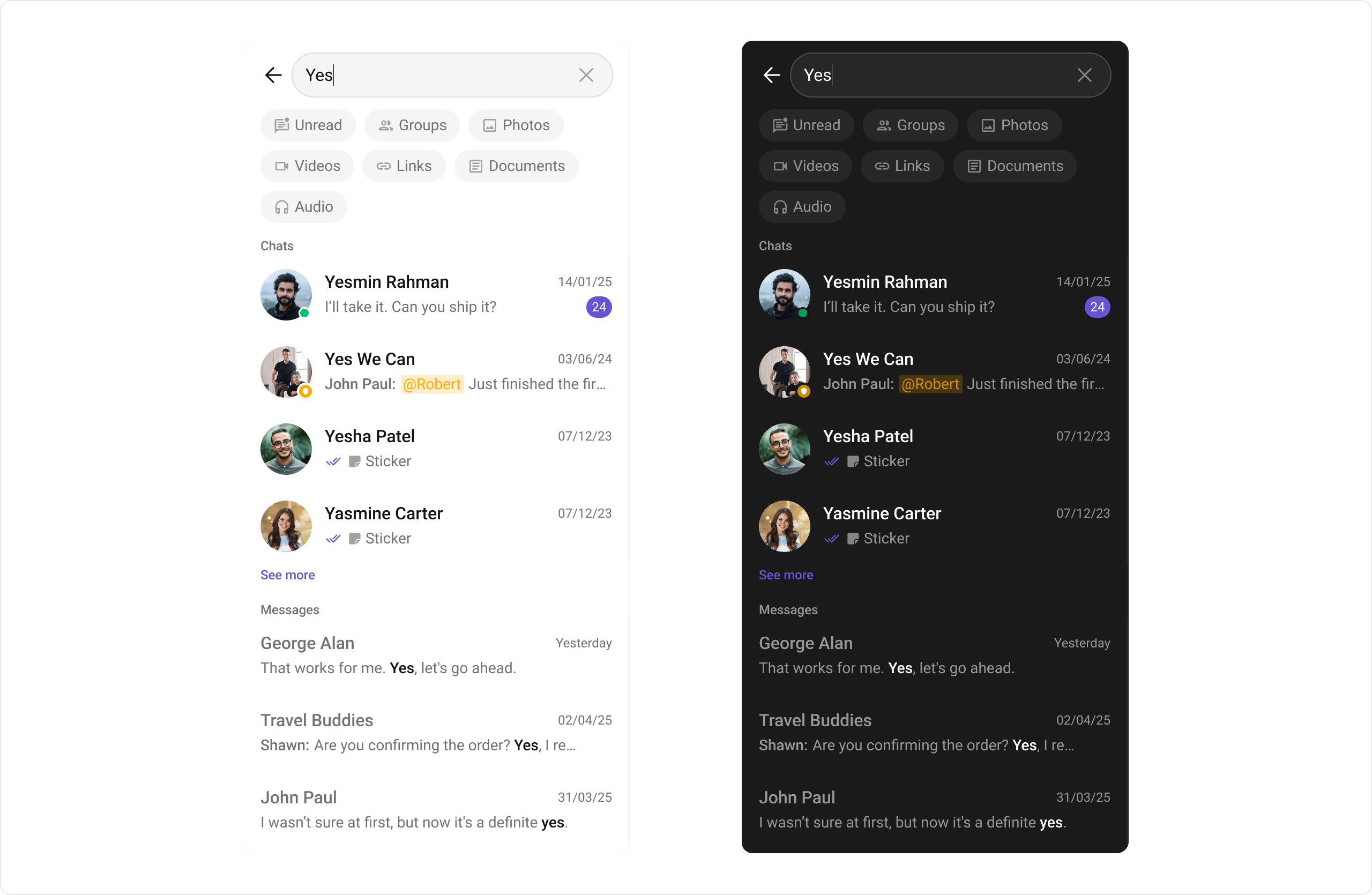
- Search - Dedicated search screen
- MessageHeader - Search within conversation
- Conversations - Search conversations
Moderation
Automatically filter inappropriate content.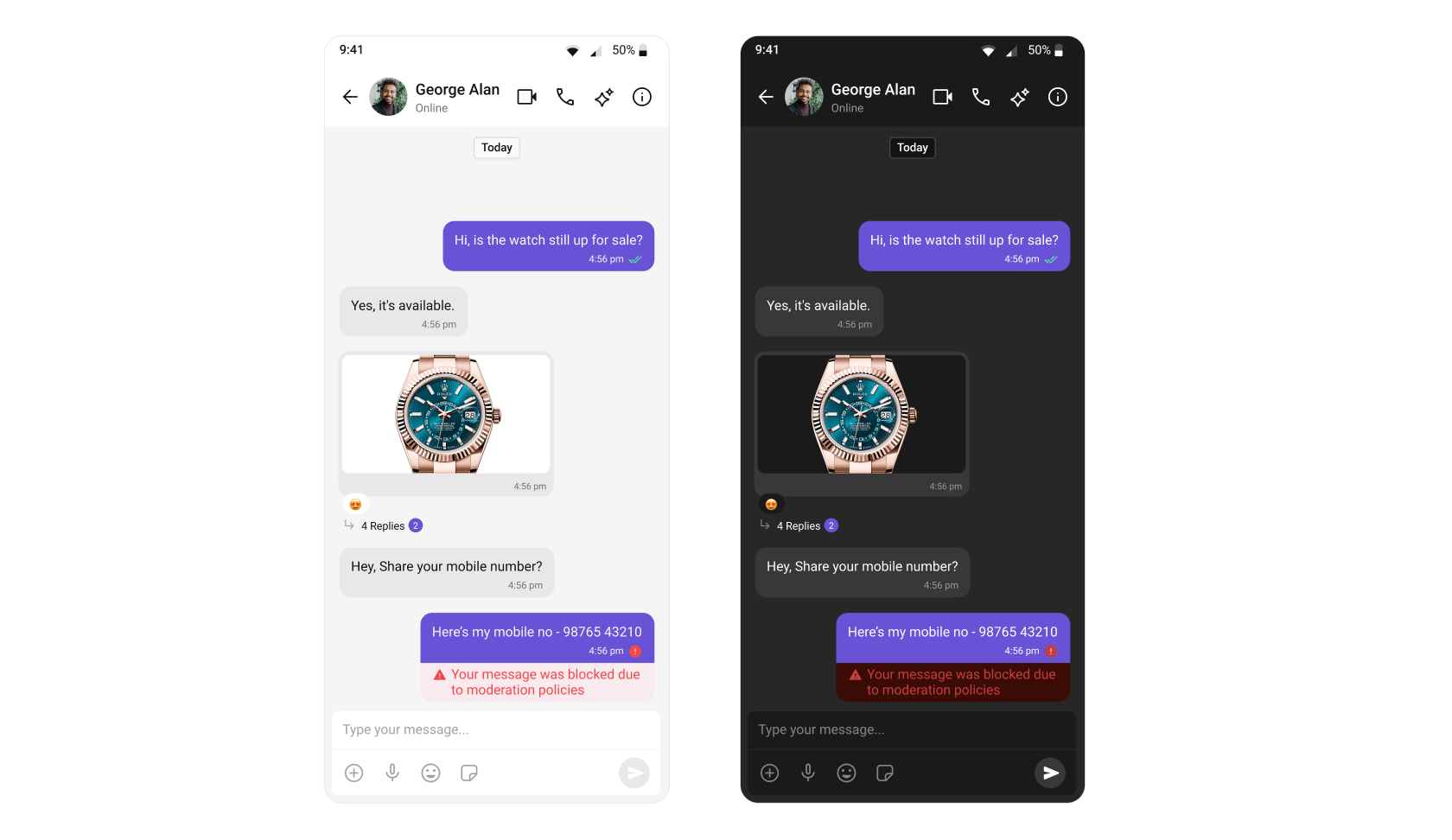
Configure moderation rules in your CometChat Dashboard.
Report Message
Allow users to report inappropriate messages.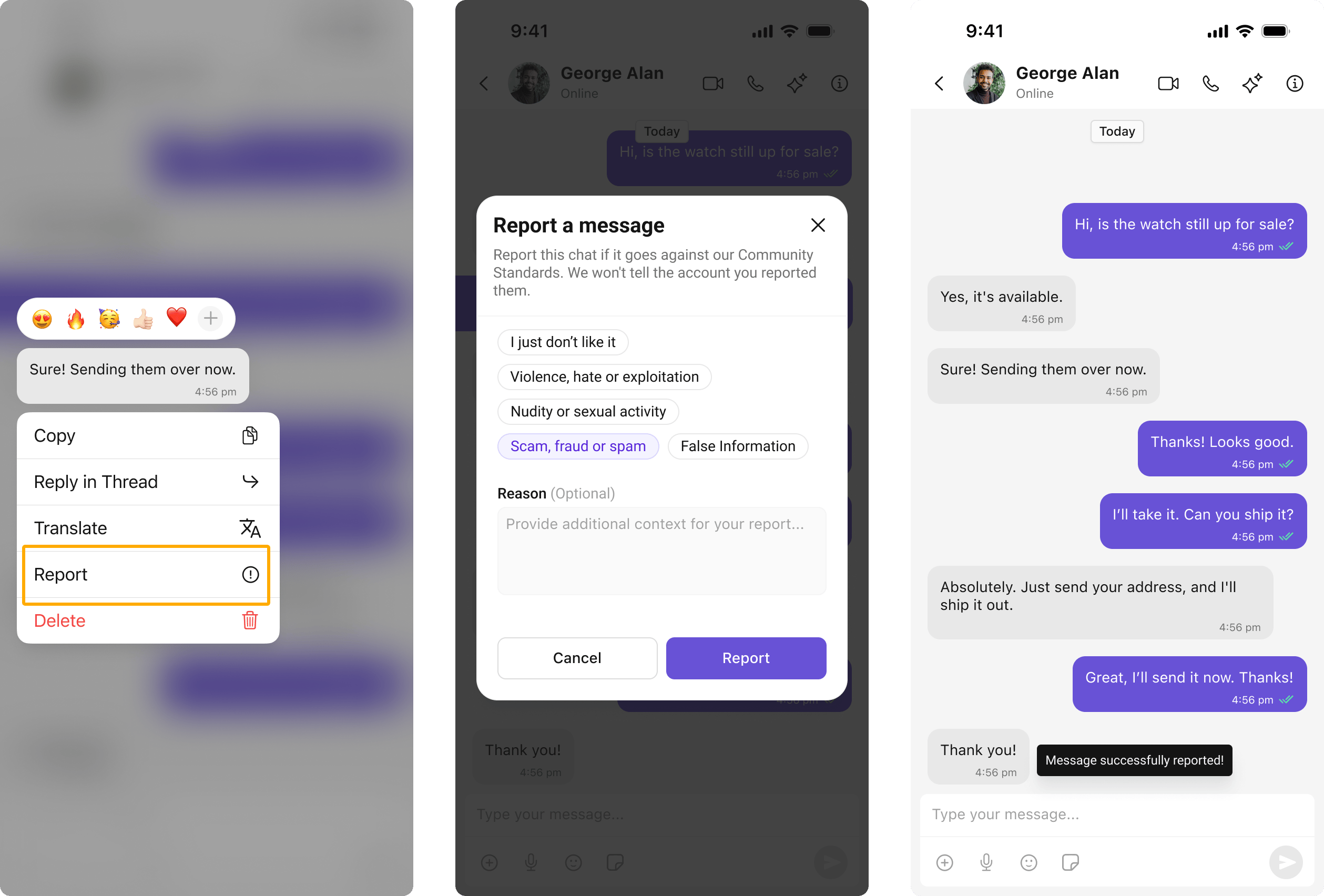
View and manage reported messages in Flagged Messages.